

Oct 2026
Automated SubscribeHR Report Ingestion for Power BI
Built a Power Automate pipeline that picks up scheduled SubscribeHR recruitment reports from a shared mailbox and keeps the latest Excel files in SharePoint, ready for Power BI to consume.
- Workflow Automation & Process Improvement
- Microsoft 365 & Cloud Administration
- Power Automate
- Exchange Online
- Office 365 Outlook connector
- SharePoint Online
- Power BI
The brief
Three scheduled recruitment reports from SubscribeHR — Vacancies Recruitment - PBI, Applicant Recruitment - PBI, and Employee Recruitment - PBI — arrived as Excel attachments in a shared Microsoft 365 mailbox. Power BI needed them in a consistent SharePoint location, refreshed every time a new report landed.
The requirements were to:
- Remove the need to watch the mailbox and download attachments by hand.
- Process only the three recruitment reports, ignoring unrelated emails and non-Excel attachments.
- Keep consistent filenames so Power BI never loses its source.
- Replace the previous report with the latest version instead of piling up duplicates.
- Create a report file automatically if it didn’t exist yet.
- Transfer the Excel files without corruption.
The approach
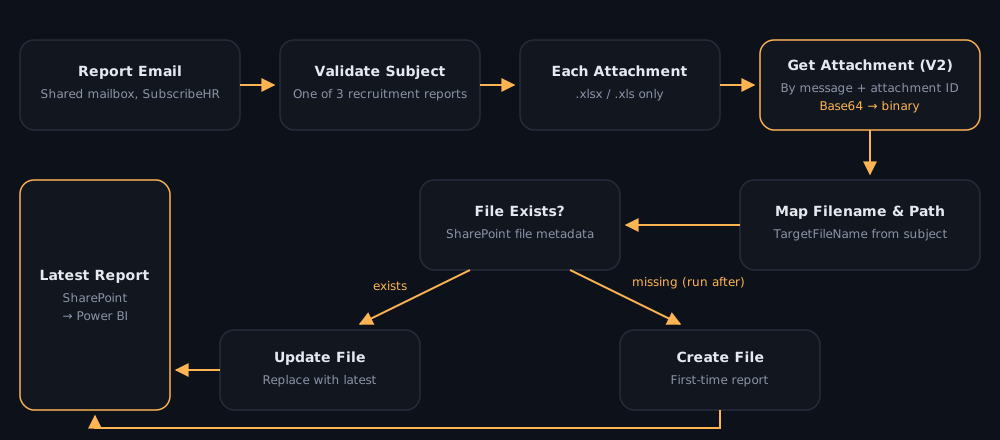
A Power Automate cloud flow connecting the Exchange Online shared mailbox to SharePoint Online.
Email processing
- Triggered on new emails with attachments arriving in the shared mailbox.
- Filtered on subject so only the three recruitment reports are processed.
Attachment validation
- Looped through each email’s attachments with Apply to Each.
- Processed only
.xlsxand.xlsfiles. - Retrieved each attachment’s content by its message and attachment IDs.
Dynamic filename mapping
- A
TargetFileNamevariable, set by conditional logic on the email subject, standardises every report’s name — for example, Report Scheduler - Employee Recruitment - PBI becomesEmployee Recruitment - PBI.xlsx. - Changes to the source attachment names can’t break downstream reporting.
SharePoint integration
- Built the target path dynamically within a team SharePoint document library.
- Used SharePoint file metadata to check whether the report already existed.
- Updated the existing workbook when found, and created a new one when not, with Configure Run After driving the update/create branches.
Key challenge: corrupted Excel files
During testing the flow created files in SharePoint, but Excel refused to open them, warning that the file format didn’t match the .xlsx extension. Inspecting the action inputs and outputs showed SharePoint was receiving invalid/null content rather than the actual Excel binary.
The fix, in four steps:
- Explicitly retrieved the attachment with Get Attachment (V2), using the original shared mailbox address.
- Targeted the correct attachment by its message and attachment IDs.
- Converted the Base64 attachment content to binary before passing it to SharePoint.
- Used that binary content for both the Update file and Create file actions.
The result is a genuinely valid Excel workbook in SharePoint — not just a file with an .xlsx name.
Outcome
A manual report-handling chore is now an automated, repeatable pipeline:
- No more manual downloading and uploading of scheduled reports.
- Only the correct recruitment reports are processed; unrelated attachments are filtered out.
- Predictable filenames and SharePoint paths give Power BI a consistent source.
- Each new report replaces the previous version, and missing reports are created automatically.
- Excel binary content is handled correctly, so files open cleanly every time.